
Categories
Get categories on your events, so your members can filter for just what they want.
Setting up categories
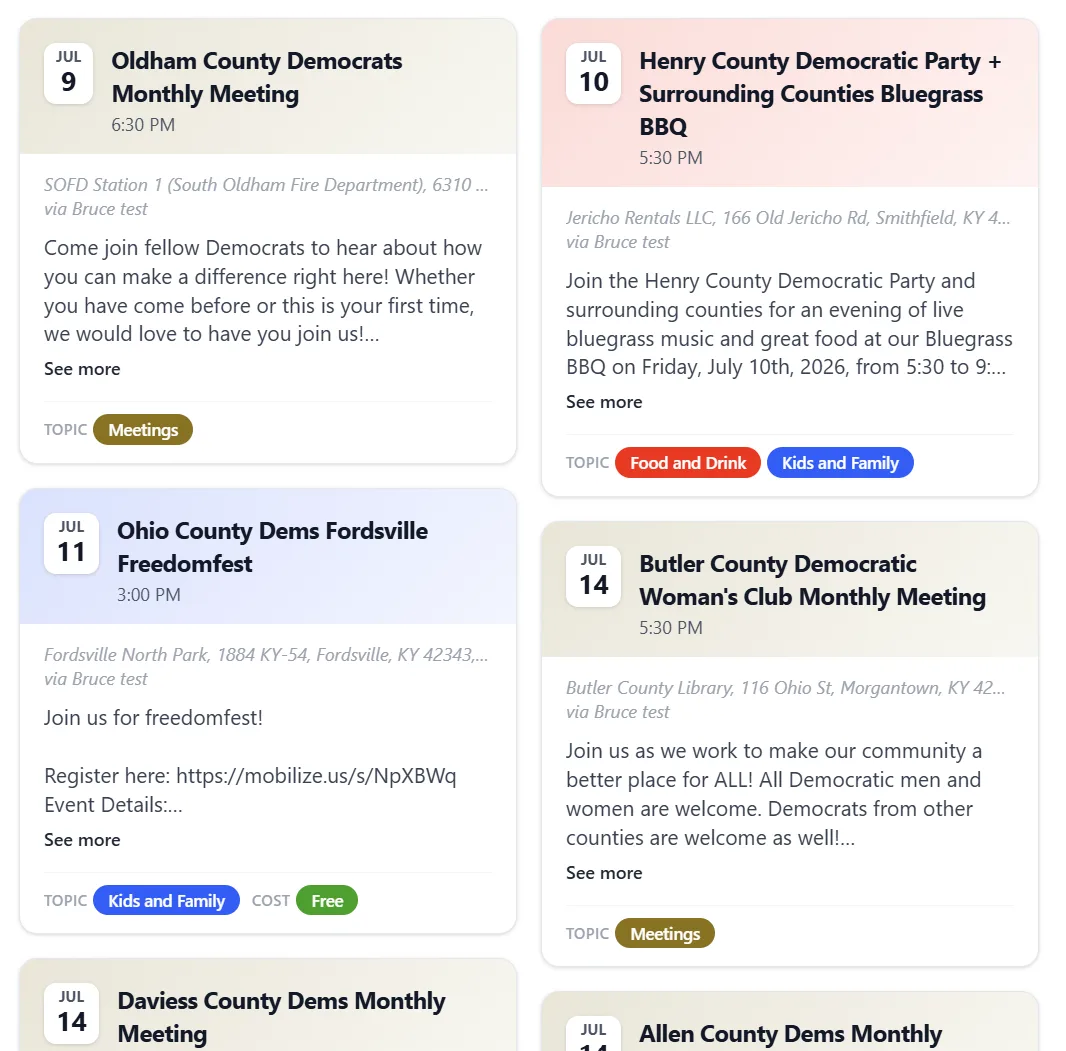
To make your events filterable by category, you'll need some categories! Add them on the Categories tab. I recommend clicking the color spot next to each one and setting a dark color, which will be used in dark form for the filter buttons and in faded form for decorating your event tiles.
Rules: categorizing without AI
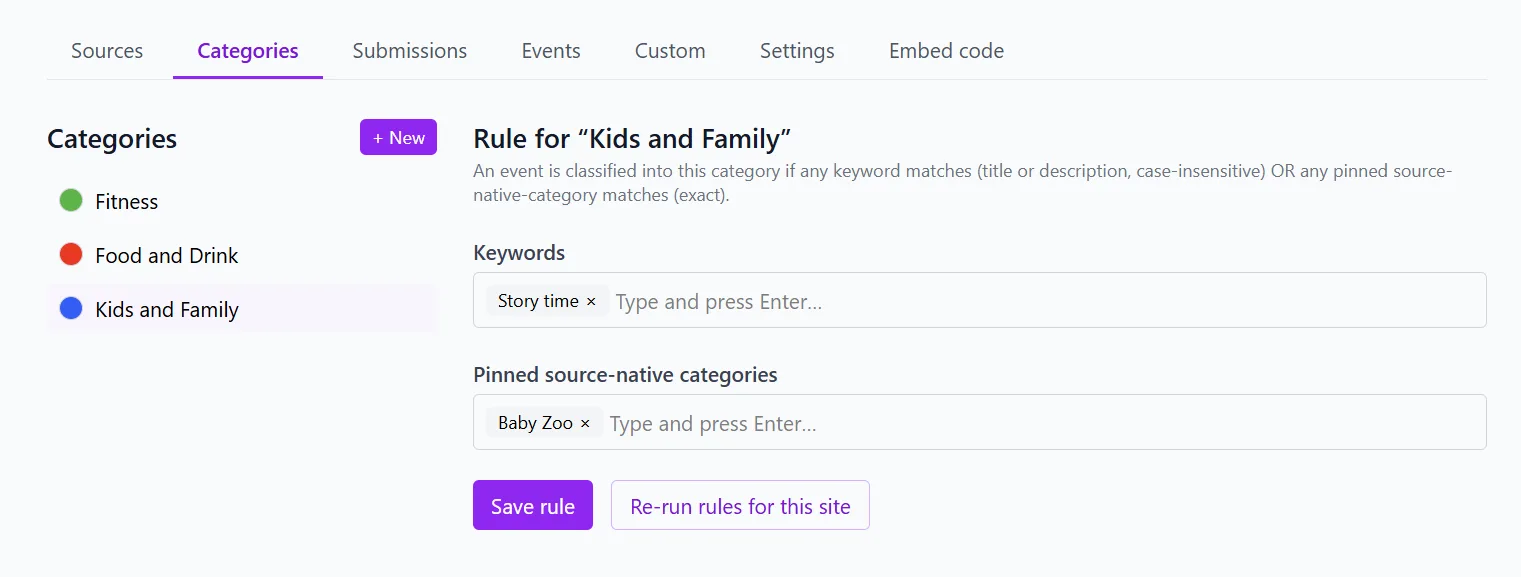
You can use the rules to avoid AI usage. The Keywords rule looks for text that matches your keywords (in the title or description, case-insensitive). Pinned haunt-native categories will match an ICS feed that has categories. If you have a source already categorizing events, mapping to your category names can save time and improve accuracy!
If AI categorization is enabled, and no rule matches, your event will be submitted to AI for categorization. The AI can only choose from your categories (or choose not to categorize), so having a fuller set of categories may improve your results.
Categories have types ✨
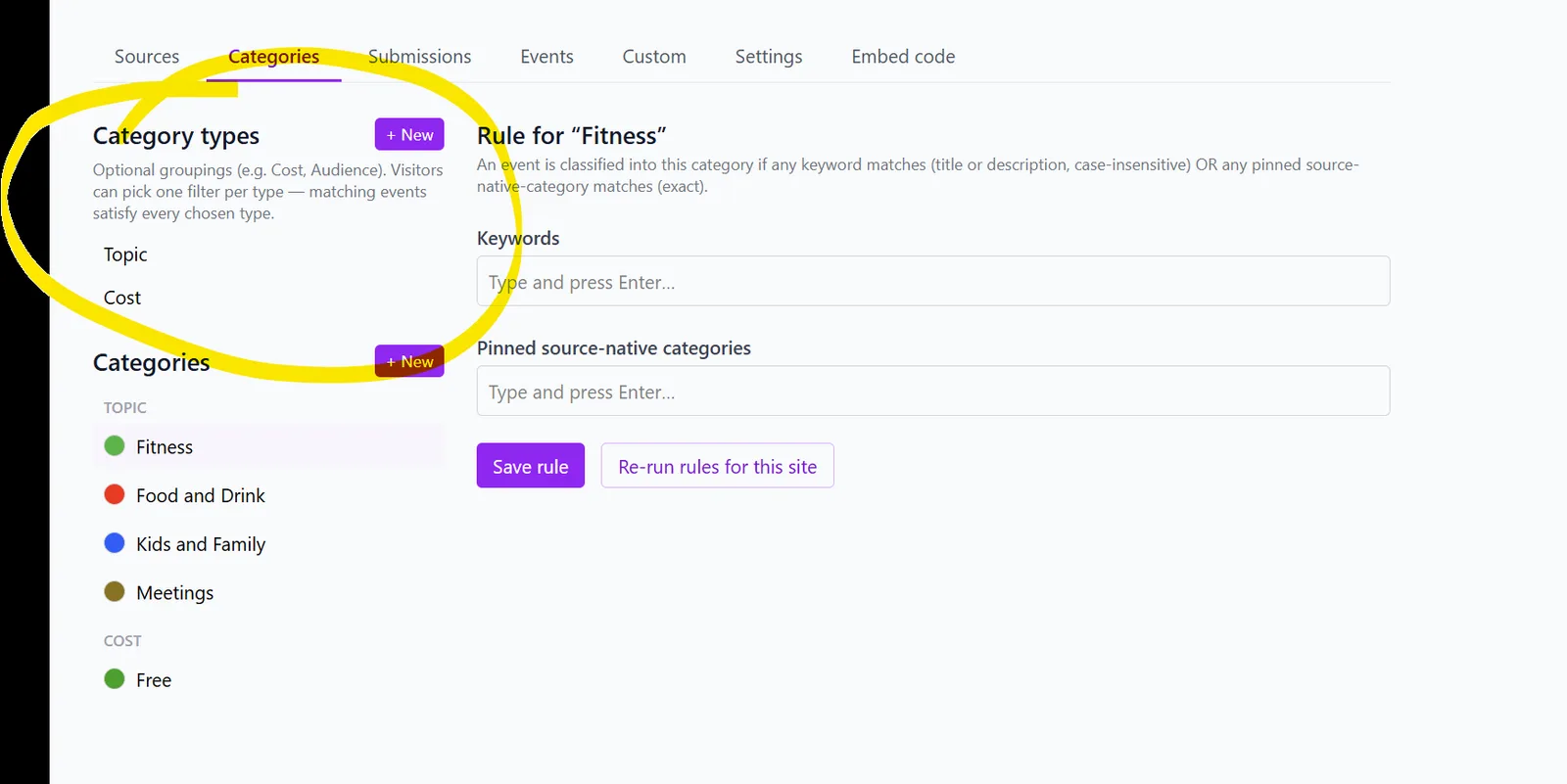
Giving your categories a "type" will allow visitors to filter for multiple categories at once, for example, if they want to see kid-friendly events that are free. Add types (Topic, Cost, Audience, whatever fits) under Category types and put each category in one; visitors pick one filter per type, and an event has to satisfy every type they've chosen. Categories with no type stay in one flat list.
When category changes take effect
AI categorization will rerun overnight if categories have been changed. Or if you're in a rush, you can hit the refresh button next to a specific source, in which case those changes will be live in 5-10 minutes. Re-run rules for this site on the Categories tab re-applies your keyword and pinned-category rules right away.